Bright scenes on PS5 look washed out. How to check HDR
Coming out of a tunnel, the road briefly blends into the sky. That might be how the game portrays the change in light. Pick a scene that stays still and check the signal your PS5 sends to the screen. You can then tell whether the effect is confined to one scene or follows you into other games.
Find a view you can return to
Load a save or park the car where a sunlit surface and a patch of shade both fit in the frame. A white building with window frames in the sun and a door under an awning works well. After you move the camera, give the brightness a moment to settle. Can you pick out the window frames? Can you still see the door in the shade? Use those same landmarks after each change.
If the screen only flashes white as you leave a tunnel and the view clears a moment later, use another spot. A brief transition like that can make a deliberate lighting effect look like a problem with the settings.
Check what the PS5 sees over HDMI
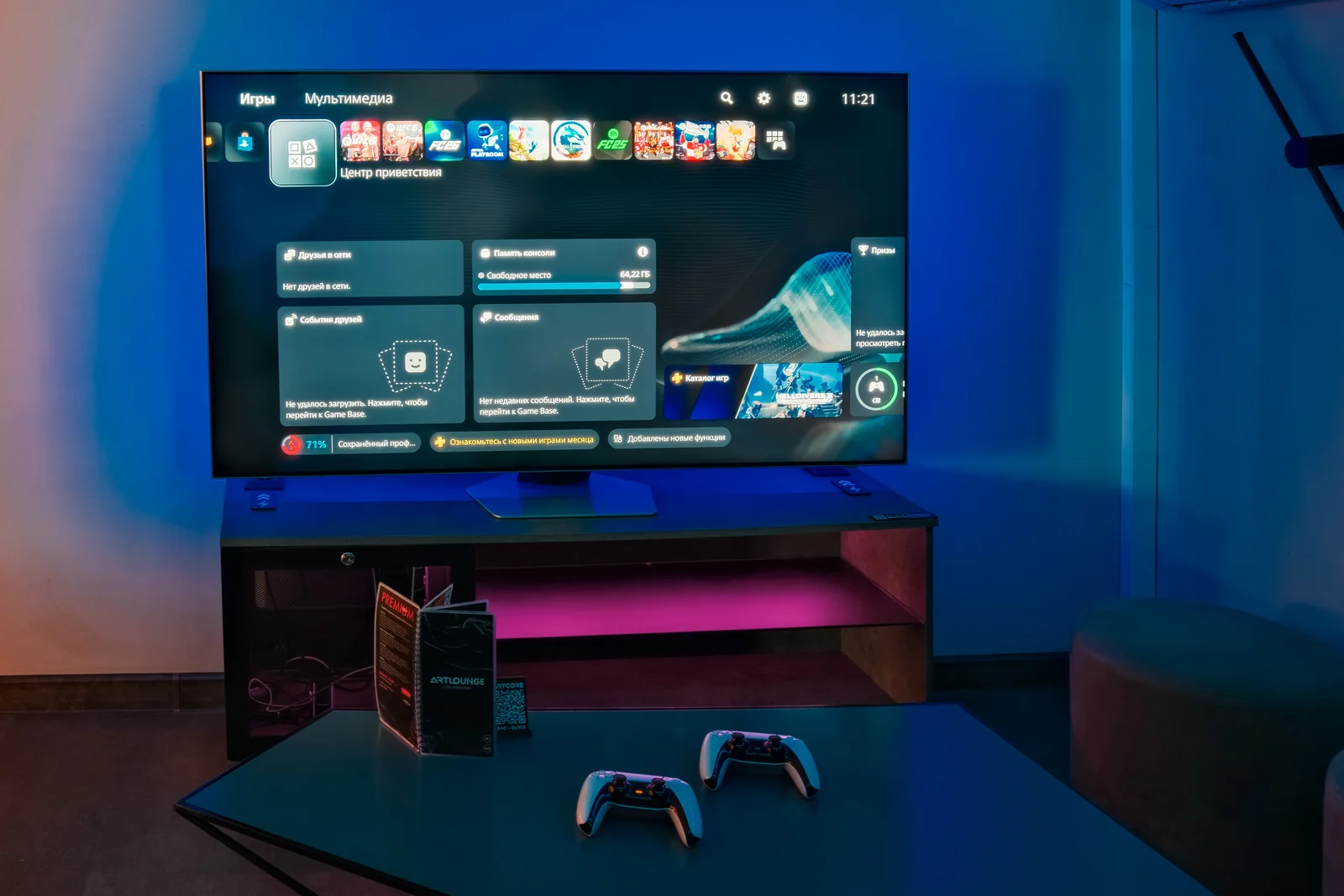
From the PS5 home screen, open Settings, then Screen and Video. Under Video Output, open Information for the Connected HDMI Device and see whether the display supports HDR. The 4K entry tells you the resolution. Look at the HDR entry to check the dynamic range.
Next, open the HDR setting. On When Supported is handy for comparing games because it leaves games without HDR in standard dynamic range (SDR). With Always On, the console also converts those games to HDR. A TV can therefore show an HDR badge even if the game has no HDR mode of its own.
Adjust HDR from your usual seat
If the display supports HDR, select Adjust HDR in the same Video Output menu. Sit where you normally play and follow the instructions on each screen. The number of button presses that worked on your TV at home may give a different result here. At a club, check with a member of staff before changing the shared console settings.
Load the same save, line up the camera as before and look again at the window frames and the door. Keep the in-game brightness and the TV picture mode the same while you compare the two views. Changing either one at the same time makes it hard to tell which adjustment helped.
See whether it happens in another game
If you can make out bright details in several games but they still blend together in one title, open that game’s picture settings. If it has its own HDR test pattern, use it, then return to the same spot and take another look.
If the PS5 reports no HDR support or you run into the same problem across games, tell the club staff which station you used, which game you played and what the HDMI information showed. That gives them a place to start. Once you can pick out the frames in the sun and see the door in the shade, you can get back to the race.