120 Hz on PS5: how to check the mode before playing
Enabled 120 Hz but noticed no difference? Check the display's capabilities, the console's output and the game's settings separately: they are three different requirements.
What exactly are you checking?
120 Hz is the screen's refresh rate, while FPS is the number of frames the game produces each second. Even with a 120 Hz signal, a game may produce fewer frames. A label on the television alone therefore does not prove you are playing at 120 FPS.
Start with the game, then check the output
First, check the game's help information for a 120 FPS mode specifically on PS5. If there is no such mode, a console setting cannot add it. If it exists, check whether it must be enabled inside the game; the steps vary by title.
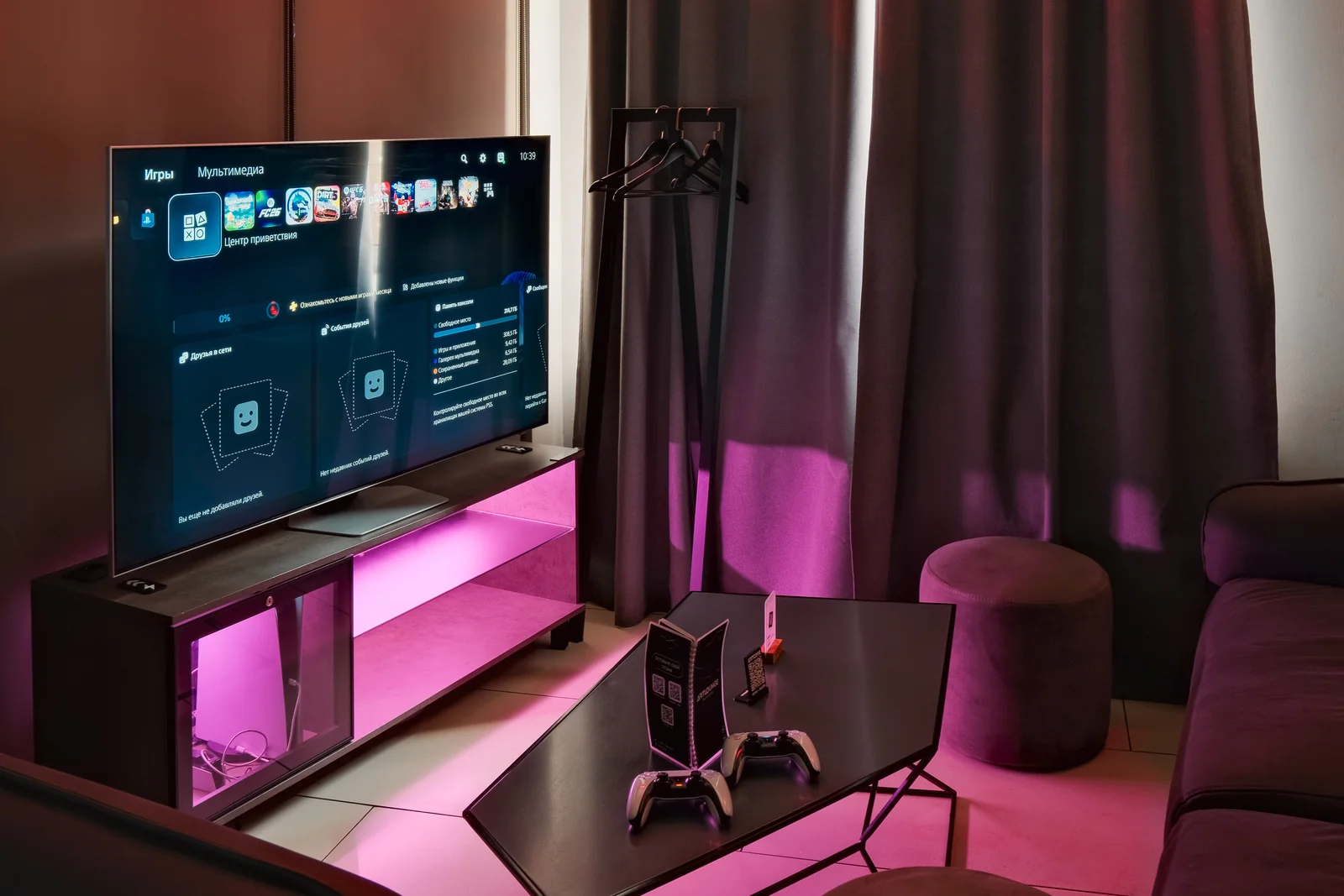
On PS5, open Screen and Video settings, then Video Output. Sony provides information here about the current signal and the connected HDMI device. Enable 120 Hz output for compatible games and displays.
Launch the game in your chosen mode and open the television's information panel if it displays the input signal. Note the refresh rate and resolution. Checking the console menu instead of the game can lead to the wrong conclusion.
If it remains at 60 Hz
Do not change every setting at once. For 4K at 120 Hz, Sony recommends checking that the television supports that combination, using a suitable HDMI port, and using the cable supplied with PS5 or an Ultra High Speed cable. The whole signal path matters: an intermediate receiver can also limit the available modes.
At home, check the port and its settings against the television's manual. At the club, ask the administrator to check the connection; do not move cables yourself. Do not assume that 4K requirements apply to every lower-resolution mode.
Decide whether to keep the mode
For your own comparison, choose a short, repeatable sequence: one route in practice or the same camera turn. Compare the available game modes in that scene, paying attention to movement and the clarity of details. This is a subjective comparison, not an FPS measurement.
If the picture disappears or output problems occur, Sony advises disabling 120 Hz. A stable picture is more useful than a mode that is only selected in the settings.
When planning a PS5 evening in Kazan, explore ARTCORE locations with PlayStation and check the game and display capabilities you need before visiting.