Steam Overlay will not open: what to check before a match
Pressing Shift+Tab does nothing over the game? Check the shortcut first, then Steam's global setting and the permission for that particular game. This quick sequence shows where the overlay stopped working without changing unrelated PC settings.
Start with one clear test
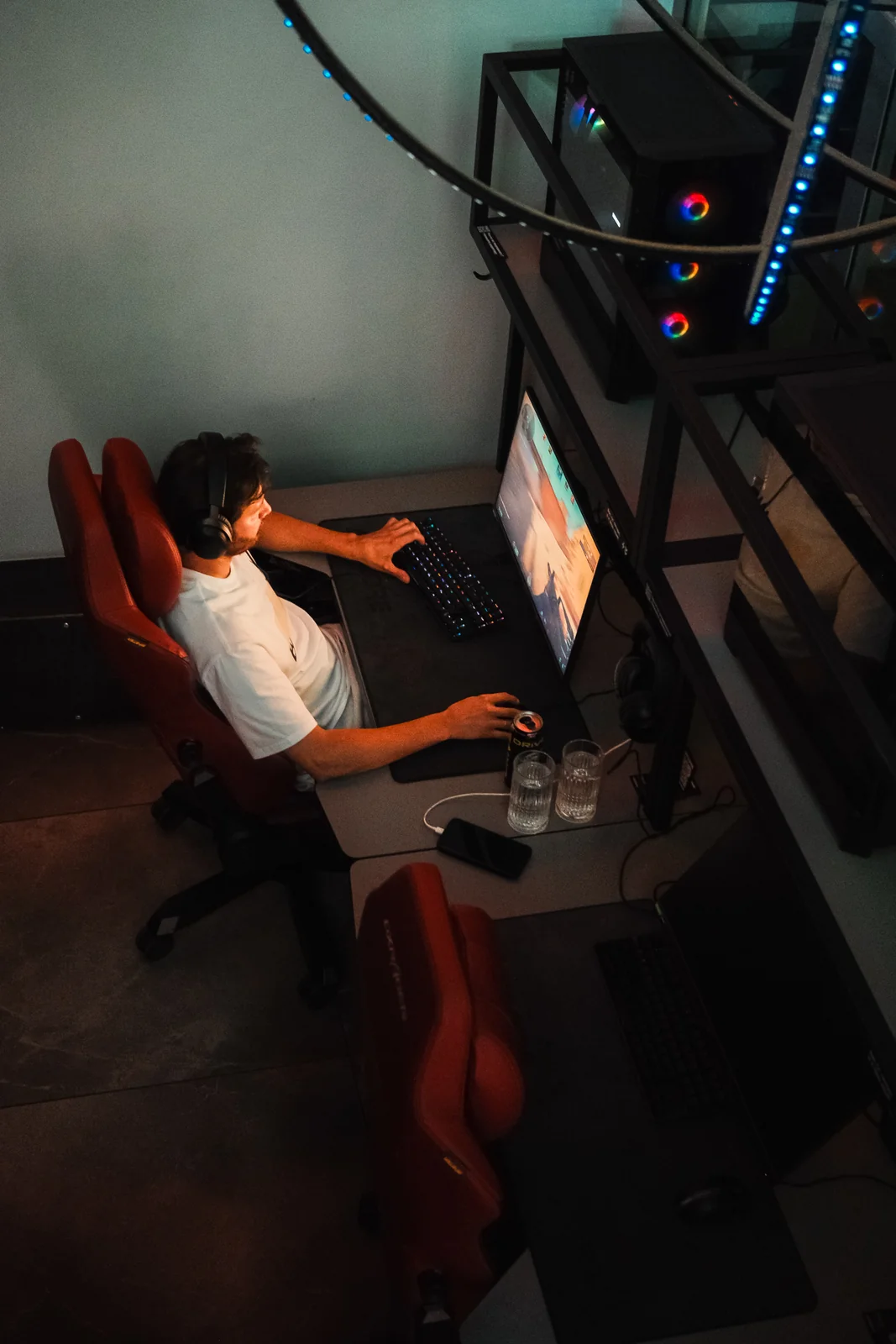
Launch the game from your Steam library and stop at a safe menu where you can press keys without interrupting a match. The default Steam Overlay shortcut is Shift+Tab. Press it once and wait a couple of seconds. If a window with friends, chat, and other Steam features appears, the test is complete.
If nothing happens, do not try random key combinations. Steam lets users assign a different shortcut, so first see which keys are shown in the client settings. This is especially useful on a PC that somebody else used before you.
Check the global setting and shortcut
Open Steam, go to Settings, and choose In Game. Make sure the option to enable the Steam Overlay while in-game is on. Check the shortcut beside it as well. If it is not Shift+Tab, use the displayed combination or assign an unused one that the game's controls do not capture.
After changing the setting, close the game completely and launch it again through Steam. Toggling the option while a game is already running may not change that session. Return to the same menu for a repeat test and press the shortcut once.
Check the permission for this game
If the global setting is enabled, open your Steam library. Right-click the game, select Properties, and find the Steam Overlay permission under General. It needs to be enabled too. Then launch the game from the library instead of opening its executable file directly.
For comparison, open a second game where the overlay worked before. If Shift+Tab works there, the likely cause is the first game's setting or launch method. If the window does not appear anywhere, continue checking the Steam client and keyboard input rather than the settings of one match.
If the window still does not appear
Close the game, exit Steam normally, and start the client again. Then repeat the short test. Do not disable PC protection or end unfamiliar processes just to restore the overlay. On a club PC, tell the administrator the game, the shortcut, and what happened in the second game.
Not every match needs the overlay, but it is a convenient way to open friends, chat, or an invitation without minimizing the game. Test it before joining the server so you are not looking for a setting during a round. Sign out of your Steam account after the session, especially on a shared PC.