Check the Steam download queue before a match
A game may be installed, yet a large update can still delay its launch. Before meeting your team, open Steam's download queue, put the required game first and wait for both the network transfer and disk work to finish.

Find the download that is holding up the launch
Open Downloads from the link at the bottom of the Steam window. You can also reach it through the View menu or from the Library. The Download Manager shows the active operation, the queue and completed updates. If the game you need is lower down, do not launch every title in turn. Start by dealing with one queue entry.
Look beyond the amount of data coming from the network. Steam also shows disk activity, so the progress bar may keep moving after the download itself has finished. The game is ready when the entire update operation disappears, not merely when the network graph falls to zero.
Put the game you need first
Drag the required game's update to the front of the queue, or start it with the control beside its entry. Leave other downloads paused until you finish checking. This makes it easier to estimate the time remaining before your match, rather than the time needed for every update on the computer.
If the session is arranged in advance, open the Library at least one normal game launch before the team gathers. Steam may defer an update for a game that has not been used recently. Launching the title normally forces an available update to be applied, so a last-minute check can turn a hidden queue into an unexpected wait.
Do not change global client settings without a clear reason. On a club computer, checking the current queue and the required game is enough. If the download will take a while, tell the administrator and your team what the client actually shows instead of trying random download regions or clearing the cache.
Distinguish downloading from installation
During an update, Steam receives data, unpacks it and writes changed files. Network speed and disk speed therefore do not match. If the network reading is zero while the disk indicator remains active, the client is still installing. Do not close Steam or restart the computer at this point.
Open the operation card and check the overall progress. When it finishes, return to the Library. The game's button should no longer ask you to update or resume the download. Only then make one test launch as far as the main menu. That confirms the update was applied and the game really opens on the selected computer.
When the match is close
Agree on a short procedure: one person checks the queue, while everyone else avoids starting installations or changing priorities. Note the game name, remaining size and visible stage. A message such as '2 GB left and Steam is writing to disk' helps the team more than the vague 'Steam is slow'.
Do not open another online game to test the connection while an update is using the network. Steam may pause downloads during gameplay by default, while manually allowing background downloads can affect latency. Finish the update first, then test the game login and voice chat.
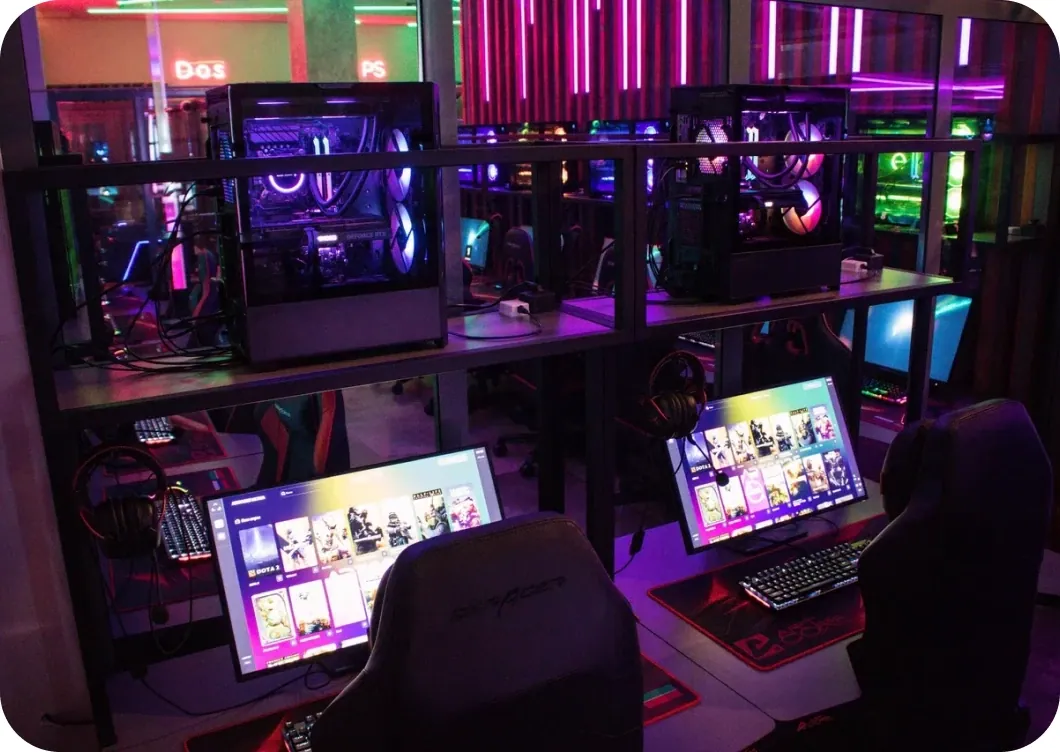
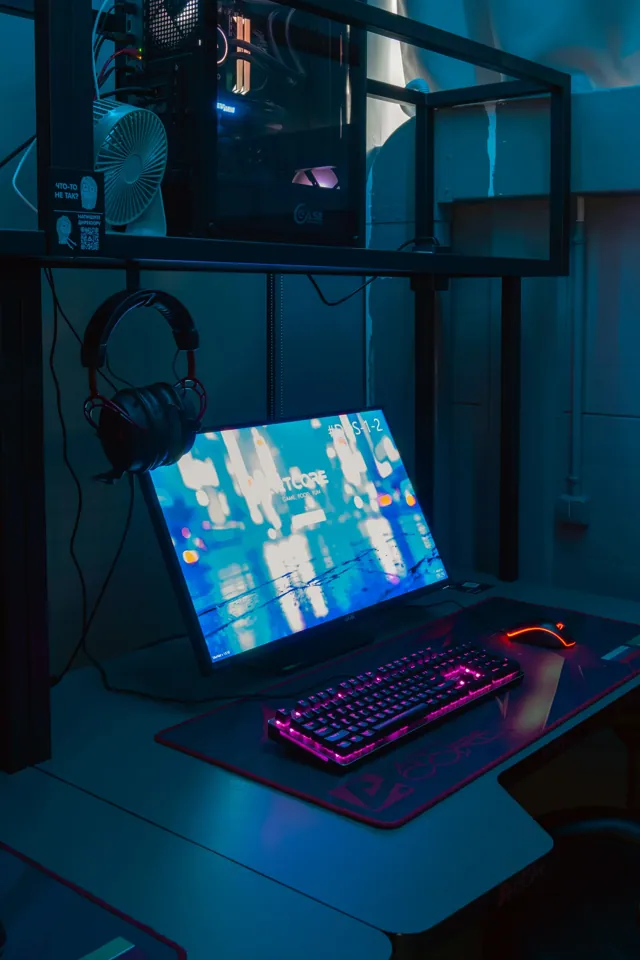
Before your visit, choose a suitable venue on the ARTCORE clubs page. At the club, tell the administrator the computer number and game if the queue stops moving or reports an error. After a successful launch, leave the Download Manager without new tasks and continue with your normal warm-up.