How to play together on one PS5: two controllers and the right mode
What to check before sharing a screen: local multiplayer support, connecting a second DualSense and getting both players into the game.
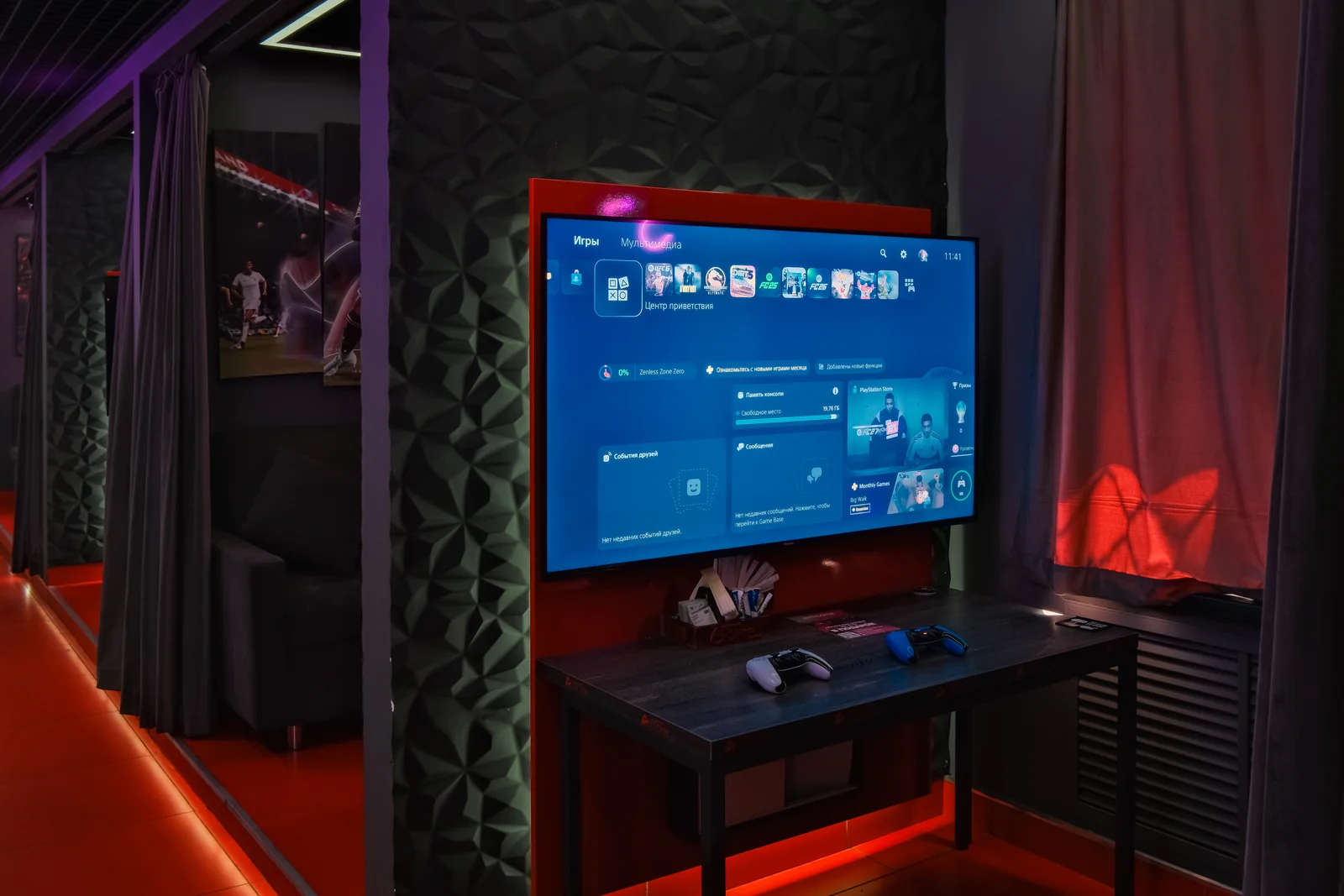
Two controllers do not automatically mean two players
Both controllers are on, but the game is waiting for only one player? Start with the game mode: two people sharing one PS5 need local multiplayer support. The word multiplayer may refer to online matches where each person has their own console.
Look in the game's description for the number of players supported on one system and whether it offers local cooperative or competitive play. In the first case you share a goal; in the second you play against one another. The screen may be split into sections or remain shared. A PS5 setting cannot add split-screen support to a game that does not provide it.
Connect the second DualSense
Make sure the controller is paired with this console. To connect it by USB, turn on the PS5, connect the controller using a suitable cable and press PS. The player indicator will light up once it is paired. In the club, ask a staff member for help if the connection fails; do not reset the equipment yourself.
When one controller is already working, you can connect the second wirelessly. Use the first to open Accessories settings and the Bluetooth device list. With the second controller switched off, hold its create and PS buttons until the light bar flashes, then select the device that appears in the list. Disconnect any USB cable before wireless pairing.
Assign the controller to the second player by following the on-screen instructions. Guest sign-in and account requirements depend on the game and mode. Do not select someone else's profile on a club console.
Add the player inside the game
Connecting to the PS5 and joining a game are separate steps. Open a local mode and follow the second-player prompt: press the indicated button, choose a side or add a character. There is no universal join button for every game.
Take turns checking the result: each player should move their own cursor or character. In a sports match, check the side selection: you may both be on the same team even though you intended to compete. In co-op, make sure each of you has a separate player.
If both controllers move the same character, check the second-controller assistance feature in the PS5 accessibility settings. It combines two controllers into one game input. That is useful for sharing control, but it does not create a second character. Ordinary two-player play requires a mode provided by the game itself.
Distinguish local play from online requirements
Subscription and internet requirements depend on the game and how you launch it. For example, local co-op in LEGO Horizon Adventures on PS5 supports two players without PlayStation Plus, while online co-op requires a subscription. Check other games' requirements separately.
Do not buy a subscription just because you were invited into an online mode: first check whether a local option exists. Local multiplayer support does not guarantee that the game will launch without internet. Installation, licensing and the game's own requirements may still matter.
Start with a short practice game
Start with a simple match or a familiar section. Check the controls, sound and whether the text is readable from the sofa. If one person is new, practise movement and basic actions first, then start keeping score in the next game. Learning does not have to become an uninterrupted string of defeats.
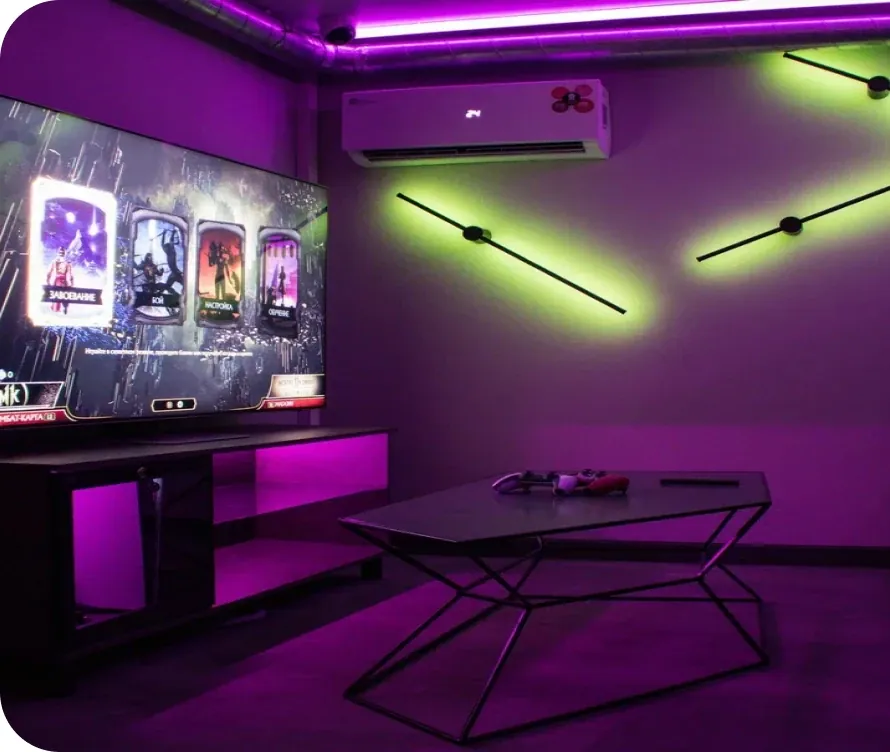
Before meeting at ARTCORE, choose a convenient club and check the availability of the game and two-player mode you want. Once both players are connected and understand their roles, you can enjoy playing without returning to settings every few minutes.